
Choosing the Right Presentation Software Today
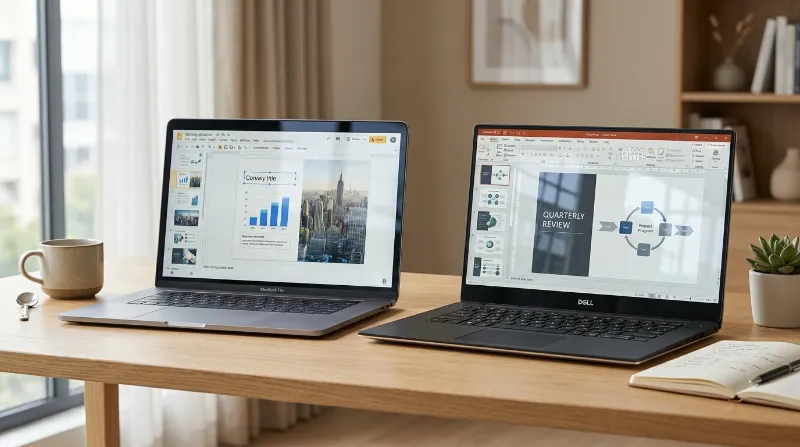
You have an important presentation coming up. You need a reliable program to build your slides. Two main choices dominate the market today. You are likely facing a Google Slides vs PowerPoint decision. Both programs help you share information with an audience. They just handle the job in very different ways. Choosing the right one depends on how you work and who you work with on a daily basis. Doing a proper presentation software comparison prevents headaches down the road. We will look closely at both platforms. This complete office software review breaks down everything you need to know in 2026. We will examine offline access, design tools, team collaboration, and pricing. Finding the best slide deck tool does not have to be confusing. You simply need to match the software features to your normal daily routine.
Offline Capabilities vs. Cloud-Based Accessibility
Location matters when you build presentations. Sometimes you have fast internet in an office. Sometimes you have no connection on an airplane. How a program handles your connection status changes your entire workflow.
The Google Slides Cloud Experience
Google Slides lives entirely on the internet. It operates as a cloud application. You open a web browser to start working. Your files live directly on Google Drive. You never have to click a save button while you work. Google saves your progress automatically every few seconds. You can grab any computer, log into your account, and see your exact slides immediately. This setup works perfectly when you have stable internet. Connection problems reveal the main weakness of the software.
Google does offer an offline mode. You just have to prepare for it in advance. You must turn this feature on before you lose your internet connection. You also need to use the Google Chrome browser and install a specific extension. If you forget to do this prep work, you cannot open your slides in a dead zone. This requirement bothers people who travel often. You never want to open your laptop on a flight and realize you cannot access your work.
PowerPoint Desktop Power
PowerPoint takes a completely different path. Microsoft built it as a traditional desktop program first. You install the heavy software directly onto your computer hard drive. This approach gives you total freedom from the internet. You can open, edit, and save your presentations anywhere. You never worry about browser extensions or offline settings. PowerPoint handles massive files easily because it uses your computer hardware to run.
Microsoft offers a web version of PowerPoint now. It tries to copy the Google cloud experience. The web version works fine for simple text edits. It still lacks many features found in the main desktop program. Professional users prefer the desktop version for heavy work. They simply save their files to a cloud folder like OneDrive. This gives them the best of both worlds. The desktop app provides peace of mind when you travel. You know your software will open regardless of the local internet situation.
Here are the main differences regarding access and storage:
- Google Slides: Requires a browser, relies on cloud storage, needs manual setup for offline work.
- PowerPoint: Runs locally on your machine, requires zero internet to function, saves directly to your hard drive.
- Storage limits: Google limits you to cloud space. PowerPoint uses your entire computer hard drive capacity.
Advanced Design Features and Multimedia Support Comparison
You want your slides to look professional and clean. Both programs give you blank slides, standard shapes, and basic templates. Their advanced design tools differ greatly when you look closely.
Designing Your Slides in PowerPoint
PowerPoint is a strong tool for pure design. It gives you deep control over every single element on your slide. You can edit photos directly inside the program. You can remove picture backgrounds, change image colors, and apply artistic filters without opening another app. Microsoft includes a massive library of professional icons, 3D models, and stock images. The animation tools in PowerPoint offer massive control. You can choose exact timing, custom delays, and complex movement paths for any object.
The Morph transition remains a standout feature for Microsoft. It automatically animates objects moving smoothly from one slide to the next. This makes your presentation look like a high-end video production. PowerPoint also handles media files effortlessly. You can drag heavy video files and high-resolution audio files right onto a slide. The program compresses these files so your presentation runs smoothly. You can use any custom font installed on your computer. Professional designers prefer PowerPoint because it rarely limits their creative ideas.
Creating Decks in Google Slides
Google Slides takes a much simpler approach to design. It provides basic tools that get the job done quickly. You get standard shapes, lines, and text boxes. The animation options cover the simple basics. You can make text fade in or make a picture fly in from the left side. You will not find advanced 3D models or complex motion paths here. Google intentionally keeps the interface clean and fast.
This simplicity stops people from over-complicating their slides. You can focus on your main message instead of playing with shadow effects for an hour. Adding media to Google Slides works differently than in Microsoft. You cannot easily drop a heavy video file from your desktop onto a slide. Google prefers you to upload the video to YouTube or Google Drive first. You then link that web video into your presentation. This method keeps your slide deck file size very small. It also means you need an active internet connection to play the video during your speech. If the venue has bad wifi, your video will buffer and stall.
Consider these design facts when choosing your software:
- Font choices: PowerPoint uses your local system fonts. Google only lets you use approved web fonts.
- Media playback: PowerPoint embeds massive video files locally. Google links directly to web videos.
- Animation control: Microsoft offers complex motion paths and custom timing. Google keeps movement simple.
Real-Time Collaboration and Sharing Workflows
Working alone on a slide deck happens rarely today. You usually need feedback from your manager or input from a coworker. Teamwork features play a massive role in choosing your software.
How Google Handles Teamwork
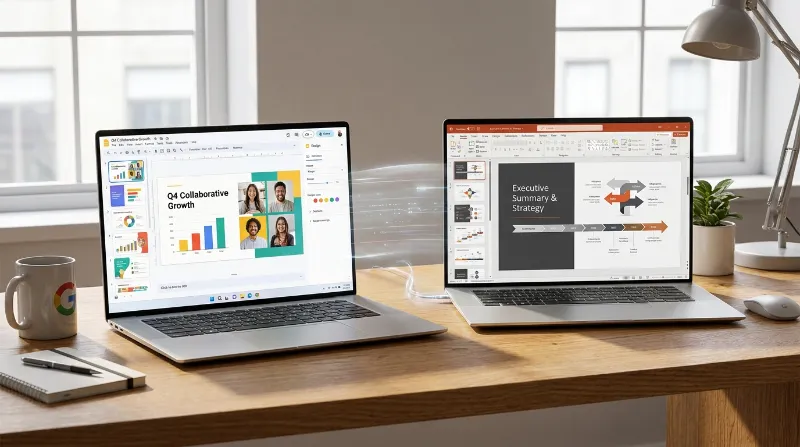
Google built Slides for teamwork from the very first day. Real-time collaboration feels flawless here. You can invite a dozen people to edit the same slide deck simultaneously. Everyone gets a different colored cursor on the screen. You watch them type words and move pictures in real time. The system stays stable even with multiple users clicking around. Leaving comments is simple and fast. You can tag a coworker with their email address. They receive an alert instantly.
The version history tool is a complete lifesaver. Google records every single change made by every person on the team. You can look back at what the slides looked like three days ago. If someone accidentally deletes a crucial slide, you simply restore an older version with one click. Sharing your work is just as easy. You do not send heavy files through email. You simply send a web link. You control if the person receiving the link can view, comment, or edit the presentation.
Microsoft Collaboration Features
Microsoft handles collaboration differently. The company added co-authoring features later to compete with Google. Multiple people can edit a PowerPoint file if you save it on OneDrive or SharePoint. The experience often feels a bit heavier than Google. Sometimes the program temporarily locks a specific slide while someone else edits it. You might experience strange sync delays if one person uses the desktop app and another uses the web version.
Version history exists in PowerPoint. It just requires saving your file strictly in the Microsoft cloud system. Sharing PowerPoint files traditionally meant sending large email attachments to clients. This habit creates massive version control problems. You end up with files named with numbers and dates. Team members lose track of the current draft easily. Microsoft pushes users toward secure link sharing to fix this issue now. The overall sharing process still requires slightly more effort than Google Slides.
Teamwork features break down like this:
- Simultaneous typing: Google handles multiple users perfectly. Microsoft sometimes struggles with sync delays and locked slides.
- Version control: Google saves every keystroke permanently. Microsoft relies on correct cloud saving habits.
- Sharing methods: Google relies completely on secure web links. Microsoft users still frequently email heavy file attachments.
Pricing Structures for Individual and Enterprise Users
Software costs play a big role in your final decision. The pricing structures for these two programs target completely different types of buyers.
Understanding Google Costs
Google Slides costs absolutely nothing for personal use. You just need a standard free Google account to start. You get fifteen gigabytes of free storage shared across Drive, Gmail, and Photos. This free version includes every single design and sharing feature. Google does not hide advanced tools behind a paywall. What you see is exactly what you get.
Businesses pay for a service called Google Workspace. These paid plans start around six dollars per user each month. The business plans provide custom company email addresses, much more cloud storage, and security controls for managers. You get massive value for a low price. If you run a small business on a tight budget, Google offers an incredibly cheap way to get professional tools.
Paying for PowerPoint
PowerPoint requires you to spend money. Microsoft only offers a basic web version for free. To get the real desktop software, you need a Microsoft 365 subscription. Personal plans cost around seventy dollars a year. Business plans start around six dollars per user each month. These subscriptions bundle PowerPoint with Word, Excel, and cloud storage.
Microsoft also still sells a standalone version of Office. You pay one large fee upfront and own the software forever. You do not get future feature updates if you buy it this way. PowerPoint costs more money for individual users. The higher price makes sense if your job already requires Word and Excel for daily tasks. If you stop paying your Microsoft subscription, your desktop software eventually becomes read-only. You lose the ability to edit your own files.
Here is a quick look at how you pay:
- Free tier: Google is completely free with a standard account. Microsoft only offers a limited web version for free.
- Business plans: Both companies charge similar monthly fees per user for their full enterprise suites.
- Software ownership: Microsoft allows you to buy the software outright. Google operates strictly as a cloud service.
Choosing the Best Tool for Your Daily Work
Making a final choice between these two strong platforms comes down to your specific daily needs. PowerPoint remains the top choice for professional design and absolute offline reliability. It handles massive files, complex animations, and detailed graphics without slowing down. It stands as the better choice for dedicated designers and solo speakers who want total control over their visuals. You never worry about venue wifi when your video files live on your hard drive.
Google Slides stands as the champion of teamwork and speed. It offers a completely smooth collaboration experience. You never have to worry about clicking save, managing confusing email attachments, or buying expensive software licenses. It works best for modern teams who need to build presentations together quickly from different locations. Review your daily work habits before you choose. Look closely at how often you travel, how much you design, and how often you work with others. Both programs will help you deliver a great message to your audience. You just have to pick the workflow that makes your life easier.