

How to Build Better Presentations Without Wasting Time
Making a presentation takes a massive amount of time. You have to write the text, find the right images, and make sure everything looks perfect on the screen. Most people spend hours just moving tiny text boxes around. You want your slides to look clean and engaging, but you also have actual work to finish. This is where an AI design assistant comes in handy. You can use artificial intelligence to handle the visual parts of your slides. This removes the stress of formatting and lets you focus on your actual message.
I will show you how to use AI to create professional PPT slides without wasting your entire day. You will learn practical PowerPoint tips to speed up your daily work and reduce your frustration. Using AI for design is no longer a thing of the future. It is a simple tool you can use right now to make your job much easier.
The Common Challenges of Manual PowerPoint Layout Design
Let us look closely at how people usually make slides. You open a blank document and stare at a white screen. You type in your main title and start adding a few bullet points. You immediately realize the slide looks completely boring. You try to fix it by inserting a stock photo. Now the text overlaps the picture and you cannot read the words. You spend the next twenty minutes dragging the corners of the image. You shrink the text. You change the font size. Nothing lines up perfectly. This is the reality of manual design.
This traditional process is highly frustrating. It is also a huge drain on your mental energy. You are probably not a trained graphic designer. You do not want to spend your morning worrying about the exact spacing between two photos. Manual design forces you to make dozens of tiny choices on every single slide. You have to pick background colors, choose fonts, and arrange shapes. Every single choice takes time and effort. When you multiply this process by twenty or thirty slides, you end up completely exhausted.
Many professionals also struggle with visual consistency. You might make one slide look truly great. Then you move to the next slide and cannot remember the exact shades you used. Your presentation slowly starts to look like a mess. Some slides are extremely dark, while others are bright white. Some pages use large bold fonts, and others use tiny text that nobody can read from the back of the room. Trying to fix all of this formatting by hand takes forever. You end up clicking through endless software menus just to change a simple background color. The traditional way of making slides is simply too slow for a busy work environment.
Exploring AI Design Features Within Modern Presentation Software
Modern presentation software has completely changed how we work. You no longer have to do every single step by hand. Many popular programs now include built-in AI tools. These smart tools look directly at the content on your slide and suggest beautiful layouts automatically. AI presentation design is a standard feature you can use right now in the software you already have installed.
Think about how you normally add a photograph to a slide. You insert the file, and it just sits awkwardly in the middle of your text. When you use an AI design assistant, the software immediately gives you a list of professional options on the side of your screen. It might suggest putting the photo on the left and organizing your text into a neat column on the right. It might crop the photo into a clean circle and place it perfectly in the top corner. You just click the single option you like best. The software handles all the aligning, cropping, and resizing for you.
This technology goes far beyond just placing pictures on a page. Artificial intelligence can actually read your text and understand the context of what you are talking about. The software adjusts its suggestions based on your specific words.
- Lists and Timelines: If you type a list of dates, the AI might suggest a horizontal timeline layout instead of standard bullet points.
- Processes and Steps: If you list three separate ideas, the AI might offer a three-column grid with matching icons for each point.
- Automated Graphics: The software searches its library to find the right icons and places them exactly next to your words.
You get professional PPT slides with just one click. Different software programs have different names for these smart features. Microsoft PowerPoint has a feature specifically called Designer. Other web tools have their own smart layout options. The main goal is always exactly the same. The software takes your raw text and basic images, and it turns them into something clean and visually appealing. You never have to start from an empty, intimidating screen again. You just give the AI your written content, and it hands you a finished design.
Step-by-Step Guide to Using AI for Color Palettes and Font Selection
Slide layout is only one part of the job. Choosing the right colors and fonts is just as difficult. If you pick the wrong colors, your presentation looks cheap and unprofessional. If you pick the wrong fonts, your audience will struggle to read your slides. You can use AI to make these choices fast and easy. Here is a simple step-by-step guide to doing this right.
Step 1: Let the AI Choose a Starting Theme
When you open your presentation tool, type a short description of your topic into the AI prompt box if your software has one. Tell the tool exactly who your audience is. For example, you might write that you need a clean, corporate look for a monthly sales meeting. The AI will generate a few starting themes based on your prompt. These themes will include matching colors and fonts right from the start. Pick the theme that looks closest to what you want to achieve.
Step 2: Use AI Generators to Refine Your Colors
Sometimes the starting theme is not completely perfect. You might need colors that closely match your company logo. You can upload an image of your logo into a free AI color palette tool online. The tool will pull the main colors from your logo and generate complementary shades that look great together. It will give you a dark color for text, a light color for backgrounds, and a bright color for buttons or chart highlights. You just copy these specific color codes into your presentation software. This is one of the most effective PowerPoint tips you can use to make your slides look custom and properly branded.
Step 3: Ask the AI to Pair Your Fonts
Finding two text fonts that look good together takes years of design practice. A machine can do it in three seconds. You can use an AI text chat tool to ask for good font combinations. You might ask the AI for a bold, modern font for headings and a highly readable font for the body text. The AI will give you names of standard, common fonts that work perfectly together. You then change your master slide settings to use these two specific fonts. Now every new slide you make will use the right text styles automatically, saving you from manually changing the font on every single page.
Step 4: Apply the Suggestions Consistently
The secret to good design is keeping things exactly the same across every slide. Once the AI gives you a solid color palette and a great font pair, stick to them. Do not change colors halfway through your presentation just for fun. Let the AI design assistant apply these established rules to every new layout it suggests. This discipline keeps your work looking sharp and professional from the very first slide to the final thank you page.
Measuring Time Savings: AI vs. Traditional Design Workflows
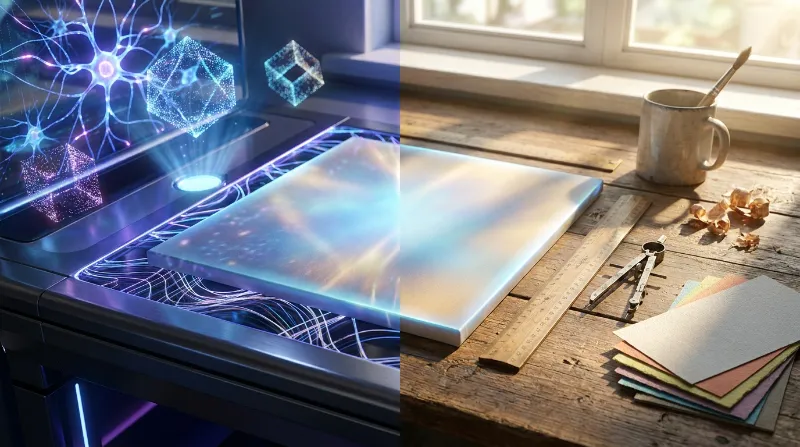
We should talk about the actual time you save when you switch to AI presentation design. The difference in speed is massive. Let us compare a traditional manual workflow with a modern AI workflow.
In a traditional workflow, creating a thirty-slide presentation is easily a full day of work. You spend the first two hours just writing the outline and gathering facts. Then you spend four or five hours building the actual slides. You search the internet for decent stock photos. You download them and insert them one by one. You drag text boxes around to make sure they align perfectly with your pictures. You test three different background colors. You realize the text is hard to read against the new blue background, so you go back and change all the font colors to white. You spend another hour just clicking through the slides to fix small alignment mistakes. You might spend six or seven hours total on a single presentation.
Now look at the modern AI workflow. You still spend two hours writing your outline and knowing what you want to say. The written content is always the most important part of any presentation. But the design phase completely changes. You simply paste your text into the blank slides. You click the AI design button. The software gives you several professional layout options instantly. You click the best one and move on. This takes about ten seconds per slide. For thirty slides, the entire layout phase takes about five minutes.
You do not have to search for basic icons because the AI suggests them based on your typed words. You do not have to crop photos because the AI frames them perfectly to fit the layout. You do not have to worry about alignment because the machine snaps everything into place automatically. What used to take four hours of dragging shapes around a screen now takes twenty minutes of reviewing AI suggestions.
This means you get back hours of your day. You can use that extra time to actually practice your speech. You can do more research for your project. You can simply finish your work earlier and go home. Using an AI design assistant completely removes the tedious busywork from making presentations. It turns a highly frustrating task into a fast, simple, and straightforward process.
Final Thoughts on Smart Presentation Design
Making presentations does not have to be a painful chore. The days of struggling with stubborn text boxes and mismatched colors are completely gone. You can use modern tools to handle the heavy lifting for you. By embracing AI presentation design, you speed up your entire workflow. You get professional PPT slides that keep your audience engaged and focused on your message. You stop wasting valuable time on small formatting tasks. You let the machine do what it does best, while you focus entirely on sharing your ideas. Try using these PowerPoint tips on your next big project. You will be surprised by how much faster you can get the job done and how much better your final slides will look.